When your clients' supplier invoices land in their own Gmail, there are three ways to get them to you on a monthly routine. The client can forward them to you with a Gmail filter. The client can add you as a delegate on their mailbox. Or the client can send you a batch at month end. Forwarding is the lightest: the client shares only the matching emails, not the whole mailbox.
This guide gives the exact steps for each, a month-end routine for your own inbox, and the point where it stops scaling. If your clients already email their documents to you, you need the other half of the job: filing what each client sends into their own folder.
The three ways, side by side#
| Method | Who sets it up | Older invoices | New invoices | What you can see |
|---|---|---|---|---|
| Forwarding filter | The client, once | No | Yes, if the filter matches | Only the forwarded emails |
| Delegate access | The client, once | Yes | Yes | The whole mailbox |
| Monthly batch | The client, every month | Whatever they send | Whatever they send | Only what they send |
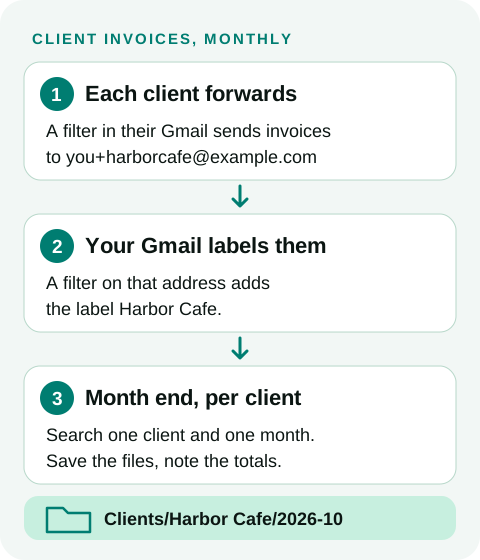
How this was checked. On November 16, 2026 we read Google's current help pages for every Gmail step on this page, and they are linked where they are used. We checked every Dioveo step against Dioveo's current code. We did not run the forwarding and delegation steps in a real mailbox for this guide. The diagram and the screenshot use sample names, not a real mailbox.
Step 1: Give each client a tagged address#
Gmail delivers mail sent to your address with a plus sign and a word added before the @ to your normal inbox. Google calls these task-specific addresses. Give each client one:
- Harbor Cafe:
[email protected] - Pine Dental:
[email protected]
Use your own address in place of [email protected]. The tag is how you sort each client's mail in step 3.
Step 2: Ask each client to forward their invoices#
The client does this once, in Gmail on a computer. Send them these steps, from Google's help on automatic forwarding:
- Click Settings, then See all settings.
- Open the Forwarding and POP/IMAP tab and click Add a forwarding address. Enter your tagged address, then click Next, Proceed and OK.
- Gmail emails a verification link to that address. You click it and tell the client. The client refreshes Gmail and opens the tab again.
- The client makes sure Disable forwarding is selected and clicks Save Changes. Turning forwarding on would send every new email, not just invoices.
- In the Gmail search box, the client clicks Show search options and types this in Has the words:
has:attachment (invoice OR receipt OR bill)- They click Search to check the results. Then they click Create filter, tick Forward it, choose your address and click Create filter again.
Know the limits before you rely on it:
- New mail only. Google says forwarding filters affect only new messages. Last month's invoices are not sent.
- Words, not meaning. The filter misses an invoice that has none of the words, such as a PDF called
doc_1042.pdfin an email titled "Your statement". For a supplier like that, the client adds a second filter, for examplefrom:[email protected] has:attachment, with the same forwarding address. - Work accounts. On Google Workspace, automatic forwarding is on by default, but an admin can turn it off or allow internal addresses only (Google Workspace admin help). If the client cannot find the option, their admin has to allow it.
- A notice for a week. Gmail shows the client a forwarding notice in their inbox for the first week. Tell them to expect it.
Or: ask to be added as a delegate#
Delegate access lets you open the client's mailbox from your own Google account, without their password. You can search all of it, old invoices included. The client sets it up, from Google's help on delegating a Gmail account:
- In Gmail on a computer, click Settings, then See all settings.
- Open the Accounts and Import tab (on some accounts it is called Accounts).
- Under Grant access to your account, click Add another account and enter your email address.
- Click Next Step, then Send email to grant access.
You get an email and must confirm within one week. It can take up to 24 hours before you can open the mailbox. The client can remove you at any time from the same section, with Delete.
Before you ask for it, know what it gives you:
- The whole mailbox. A delegate can read, send and delete email in the account. Some clients will not want that.
- Not for work accounts. A personal Gmail account can have up to 10 delegates. A Google Workspace account can only add people or groups in its own organization, so an outside bookkeeper cannot be added there.
- A computer to set up. Delegates cannot be added from the Gmail app.
With delegate access, you run the month-end search in step 4 inside the client's mailbox, without the deliveredto: part.
Step 3: Sort each client's mail as it arrives#
In your own Gmail, set up a label and a filter for each client, once:
- On the left, next to Labels, click Create new label. Name it after the client, for example Harbor Cafe, and click Create.
- In the search box, click Show search options and type the client's tagged address in Has the words, like this:
deliveredto:[email protected]Click Search first. Only mail sent to the tagged address should show, such as Gmail's verification email from step 2. If your other mail shows too, search the client's own address instead, for example to:[email protected], and use it in step 4 too.
- Click Create filter, choose to apply the Harbor Cafe label, and click Create filter again.
When the first forwarded invoice arrives, check that it carries the label. If it does not, compare the address in the client's filter with the one in yours.
Step 4: Your month-end routine#
Early each month, for each client:
- Search the client's address and last month. For October 2026:
deliveredto:[email protected] has:attachment after:2026/10/01 before:2026/11/01- Open each email. Hover over each attachment and click Add to Drive, or download it, as Google's help on attachments shows. Put the files in the client's folder.
- Type each invoice's supplier, date and total into your spreadsheet. Note the file name on each row, so you can check it later.
- Compare with last month. A regular supplier with no invoice this month is the one to ask about.
The search operators are on Google's search operators page. before:2026/11/01 keeps all of October 31.
Where the manual method stops working#
- It is per client and per month. Ten clients means ten searches, every attachment saved by hand and every total typed, every month. Gmail saves attachments one email at a time.
- Filters see only new mail and only your words. Anything older, or worded differently, needs a manual catch-up.
- Nothing links a row to its invoice. A typed total is only as good as the file name you noted next to it.
- Copies add up. Every forwarded invoice is a second copy in your own mailbox and uses your storage.
How Dioveo helps with the invoices in your mailbox#
Dioveo connects to one Gmail mailbox: the one you sign in with. Once your clients' invoices arrive there, it takes over the first three steps of your month-end routine.
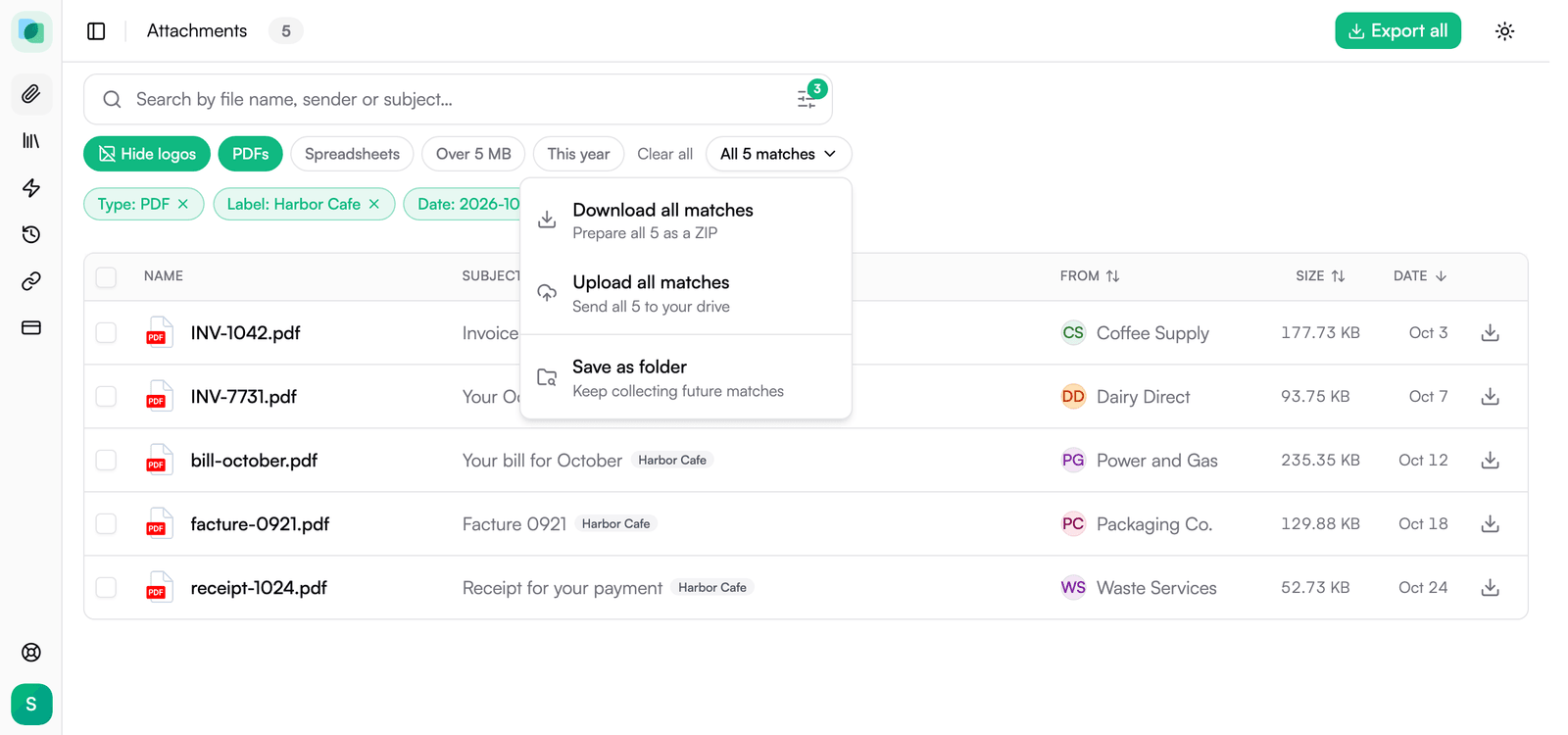
Find the files, not the emails. Dioveo lists the attachments in your mailbox as files. Filter by the client's label, the PDF type and the month, and you see that client's invoices for the month.
Save them in one go. Open the matches menu above the list (All 5 matches in the picture). Download all matches gives you one ZIP, sorted into folders by sender and year or in the layout you pick. It includes a manifest.csv that lists each file with its sender, subject, date and a link to the email. Or Upload all matches sends them to the client's folder in Google Drive, Dropbox or OneDrive.
Get the spreadsheet (Pro). A spreadsheet workflow reads the invoices you choose and writes one row per invoice into a Google Sheet in your Drive. You pick the columns, such as supplier, date and total. Each row also gets a Source attachment link to the email the file came from. You preview the result on three of your own attachments before anything runs, and values it is not sure of wait for your review. See how Gmail invoices become a Google Sheet.
The free plan covers 50 files a month across downloads and manual cloud saves. Pro is $11.99 per month or $99 per year, with unlimited downloads and saves and the spreadsheet.
What Dioveo does not do today is connect your clients' own mailboxes to your account. That is what the pilot is for.
The pilot for accountants and bookkeepers#
When invoices sit in many client mailboxes, the forwarding filters and the monthly searches are the slow part. Our pilot for accountants and bookkeepers tests a faster way. You never get access to your client's inbox: the client connects their own Gmail to Dioveo once, and only the invoices and receipts are shared with you, as files and a spreadsheet in a shared Drive folder.
- Each client signs in to Dioveo with Google once and approves Dioveo's access to their Gmail on Google's own screen. No passwords change hands.
- We agree the columns with you and check the first results together.
- Each month you get a spreadsheet for each client, one row per invoice with its file name, and the original files, in a Google Drive folder for that client, shared with you.
Several client mailboxes under one account are not in the app yet. In the pilot, we run that part with you by hand. A small team that shares one invoices@ mailbox has a pilot for teams: one person connects it, and the team works from a shared Drive folder and Sheet. There is no payment to join. See the pilot for accountants and bookkeepers.
Frequently Asked Questions#
Can I log in to my client's Gmail with their password instead?
Google offers delegation so that nobody has to share a password. A shared password also opens the client's whole Google account, not only their mail. Forwarding or delegate access gives you what you need without it.
Will a forwarding filter send invoices the client already has?
No. Google says forwarding filters affect only new messages. For a one-time catch-up, the client can forward older invoices by hand, or give you delegate access. To pull a whole year from one mailbox at once, see how to download all invoices from Gmail.
My client cannot find the forwarding option. Why?
On Google Workspace, the admin decides. Automatic forwarding is on by default, but an admin can turn it off, and then the option is not shown in Gmail settings. The client needs to ask their admin.
Does this work for receipts that are only in the email text?
Only if the client's filter catches them. The filter in step 2 asks for an attachment, so for a shop that sends receipts in the email text, the client adds a second filter without has:attachment, for example from:[email protected], with the same forwarding address. Dioveo works with attachments only, so a receipt that exists only as text in an email is not listed. Save those emails as PDFs, or note them by hand.
Can my team use Dioveo with a shared invoices@ mailbox?
If invoices@ is a real mailbox with its own sign-in, one person can connect it to Dioveo today. The files can go to a Google Drive folder you share with your team, and a Google Sheet can be shared like any other. A Google Group or an alias has no sign-in of its own, so it cannot be connected. The team shares the Drive folder and the Sheet; there are no separate logins to one Dioveo account.
Does Dioveo change anything in my mailbox?
Dioveo never sends or drafts email from your Gmail account. It only changes your mailbox when you ask it to: applying labels, archiving or marking mail as read in automations you turn on, creating Gmail filters for automations you set up, or moving emails you select to Gmail Trash after you confirm. Downloading or saving a copy never removes anything from your mailbox.
Stop managing attachments by hand
Dioveo finds every attachment in your Gmail, lets you search and download them in bulk, and auto-saves new ones to Google Drive, Dropbox, or OneDrive.
 CASA Tier 2 assessed
 GDPR compliant